
Chapter 11 of 16 · all chapters
- 1. What Examiverse does
- 2. Set up your company
- 3. People, roles and skills
- 4. Make a course
- 5. Languages
- 6. How employees learn
- 7. Interactive games
- 8. Live Practice
- 9. Chart Lab
- 10. Certificates and evidence
- 11. Reports and checks
- 12. LMS Studio
- 13. Export any course
- 14. Translate a video
- 15. Plans and credits
- 16. What runs on its own
Reports and recurring knowledge checks
See where you stand, who leads each course, which questions people miss and how practice calls are going, and send short checks to find out whether training stuck.
- 1Fully certified today
- 2Overdue and due soon
- 3Each course’s leaderboard, for managers
- 1People worth a conversation
- 2Find a job, or what waits for your approval
- 3Each job says what is happening
Reports
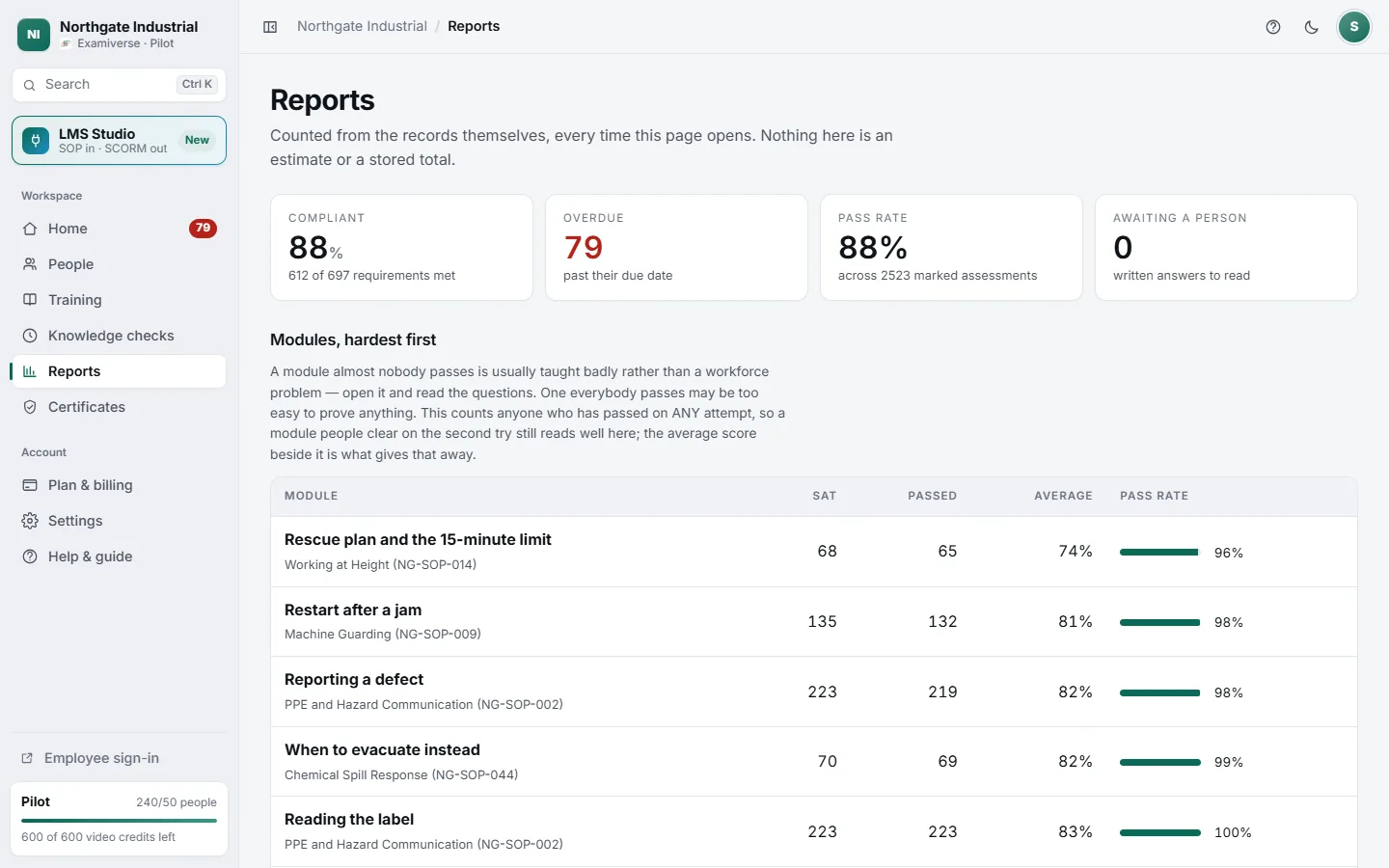
Reports are counted from the records every time the page opens — nothing is an estimate or a stored total. Start there when somebody asks "are we covered?": how many people hold every certificate their job requires (the same count as the home screen), how many certificates are overdue or due inside 30 days, and how each course, module, role, language, location and country is doing.
Each course has its own report: open Leaderboard beside it. People are ranked on their best score on the final assessment, ties going to fewer retakes, with the top three shown first. Below the board are the people not on it yet, how the scores spread against the pass mark, each paper of the course, and the questions people get wrong most, with the wrong answer chosen most often, which usually says what the lesson did not make clear.
Assessment results can be read for the last 30 days, 90 days, 12 months or all time, against the period before. Modules are ranked hardest first by how many people pass first time: a module few people pass first time is usually taught or asked badly rather than a workforce problem. Courses CSV, Locations CSV, Countries CSV and Leaderboard CSV download the same figures for a spreadsheet, and Print or save as PDF gives a clean copy for a review meeting.
Live Practice report
Under Reports, Live Practice shows how your people are doing at their practice calls: how many have practised, the pass rate, who is struggling, who has not started and who is past their practise-by date, and the average of each person’s best mark. Practice never changes a certificate; this is where you see who is ready and who needs help.
Each practice has a card with its figures and the points people miss most, worked out from its newest calls: a point to get across, a line that must never be said, a planted moment, a mistake to catch, a drill question or a picture, with how many calls it was missed in. A point most people miss usually needs teaching again, or saying more clearly in your document.
Below the cards, People lists one row per person per practice: their status, why (for example "3 calls, best 54%, never reached 70%"), their best and latest mark, when they last practised, and a button to open the call. Search by name or employee number, narrow by practice, role, location or country, show only the people struggling, not started, overdue, waiting for review or passed, and sort the list. The first 50 rows load with the page; Load more brings the next 50. Filters stay in the page address, so a filtered view can be shared or bookmarked. People CSV downloads every row the filters match. By role and By location show which teams are struggling.
Knowledge checks
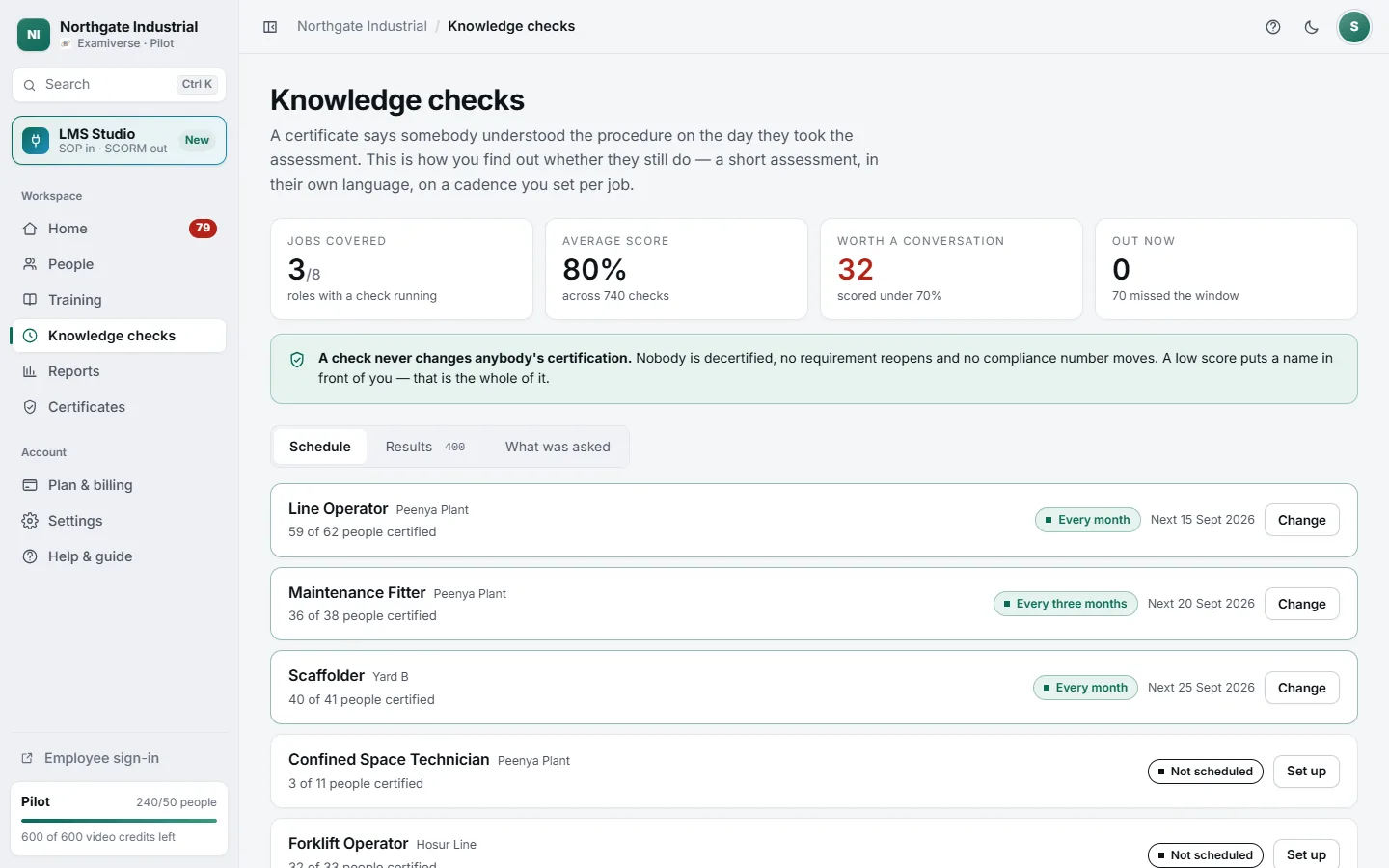
A certificate says somebody understood the procedure on the day. A knowledge check is how you find out whether they still do: a short assessment in their own language, on a cadence you set per job — monthly, quarterly and so on.
Questions come from the live lessons of the job’s courses, never from the document directly, and each person is asked only about the skills they are certified in. Nothing reaches anybody until you have read the questions and approved them.
-
Preview the questions
Under Knowledge checks, press Set up on a job, choose how often, how many questions and how long people have to answer, then press Preview the questions. The settings are saved but nothing is started. The questions are written within a minute or two, in the language of the lessons and in the two languages most of the job reads; the panel names them, and the languages that are translated later.
-
Read them as an employee would
Press Read and approve. You see the paper exactly as an employee does, in any language it was written in: the options in the order they get them, the screen in their language, right to left for Arabic and Urdu. Switch Show the answers on to check every key, or Show all at once to scan the whole set.
-
Approve them
Press Approve these questions. Your name and the time go in the audit log. If a lesson changes before you approve, the preview is marked out of date and you write new questions.
-
Start checking
Back on the job, press Start checking. The dialog says how many people it reaches, in which languages and when the first check goes. The first check is dealt from exactly the questions you approved; any other language people read is translated from them, with every figure checked, and nothing is rewritten.
Each job’s card on Schedule says what is happening to its check. Queued gives its place in line: your checks are written one at a time, and the card says how many of your other checks are written first. Writing and Sending name the step in hand, such as the language the questions are being put into, or how many people the check is going to. Try failed gives the reason, when the next try is and which try of five it will be. A preview that could not be written, and a Send one now that could not go out, are tried again on their own: after an hour, then two, four and eight. If all five tries fail, the card reads Stopped trying and names the button to press. When the day’s writing allowance is used up, the card says the check is waiting for it, nothing is charged, and the check goes once the allowance is back. Waiting for approval carries a Read and approve link. The page keeps itself up to date while anything is being written or sent, so there is nothing to reload.
When a job is waiting for approval or needs attention, or you have more than eight jobs, three filters appear above the jobs, each with a count: All, Waiting for approval and Needs attention. With more than eight jobs there is also a search box, for a role or a location. Questions waiting for approval are also counted on Knowledge checks in the sidebar, and when a running check is held for them your admins get one email for each set of questions, with a Read and approve button.
After the first check, each later one is written afresh and sent on its own at the cadence you chose. A preview you ask for then is a sample of what the next check would ask, not the paper that goes out; once a preview has been written, the button reads Write new questions. If Human approval required is on in Training settings, every check waits for a person to approve its questions, and the questions for the next one are written for you to read when it falls due. With it on, the preview is written in every language the job reads, for you to read before you approve, and nothing is translated after you approve. Somebody whose language is not in the approved questions is asked in the language their course is in, and the job’s panel names the missing language and the one its readers are asked in.
Each person is asked in their own language when their course was made in it. Somebody whose language the course was not made in is asked in the course’s language, the one they were taught in, and the panel says how many people that is. Their check tells them which language it is in before the first question.
A check going to a large group may not reach everybody at once; the rest follow in a minute or two. Until every paper is out, it is marked Still being sent under What was asked. On Results, Every check lists the answered checks first, then those still out, then those missed; Under 70% and Missed show only those. A line under the table says how many checks are shown of how many, and Load more adds the next ones under them.
For the employee, the check’s time limit (Training settings, Tries and time) starts only when they press Start, never when they open the page, and the intro tells them how long they have. They can press Not now and come back later. A reload keeps the answers already given. A paper handed in after the time runs out is closed at 0 and the employee is told why.