
Chapter 8 of 14 · all chapters
Live Practice: voice role-play from your own document
Voice role-play practice calls built from your own SOP. Your people talk it through out loud in their own language and are marked and coached against it.
What it is
Live Practice puts your people on a voice call with someone from their job — a customer, a doctor, an inspector, a new joiner — played by AI and drawn from your own document: one of your courses, or a document you paste. They practise the real conversation out loud, in their own language, on a phone or computer. Afterwards they are marked against what your document says and coached on what to do better, and a manager can listen to the call.
Four kinds of practice
- Conversation. The AI plays a person from the job: a customer in a shop, showroom or branch, a doctor your rep presents a product to, a chemist or store owner, a patient or family member, a caller with a question or complaint, an inspector or auditor who asks how the job is done, a new joiner your employee must teach, a supervisor checking their work, or someone you describe in a sentence. The character reacts like a real person: it doubts a wrong claim (“Are you sure? I heard something different”) and never teaches the right answer.
- Spot the mistake. An AI colleague does a task from your document out loud, step by step, and makes three to five of the mistakes your document warns against, one at a time. Your employee must stop them and correct each one with what the document says.
- Show and explain. The AI holds up your course’s own teaching pictures one at a time and asks what is happening there; your employee explains out loud. The pictures come from your document and are never generated, so this needs a course whose document has at least two teaching pictures.
- Quick drill. About ninety seconds: six to ten short spoken questions from your document. The AI never gives the answer. A question counter and a day streak are there to make it a daily habit.
A conversation is marked on the points your employee must get across, the lines they must never say (saying one fails the call), the moments planted in the call — the character mentions a side effect in passing: did your employee do what the document says? — and four skills: listening, clarity, care and handling questions. Spot the mistake is marked mistake by mistake, Show and explain picture by picture, and a drill question by question.
Setting one up
-
Choose the kind
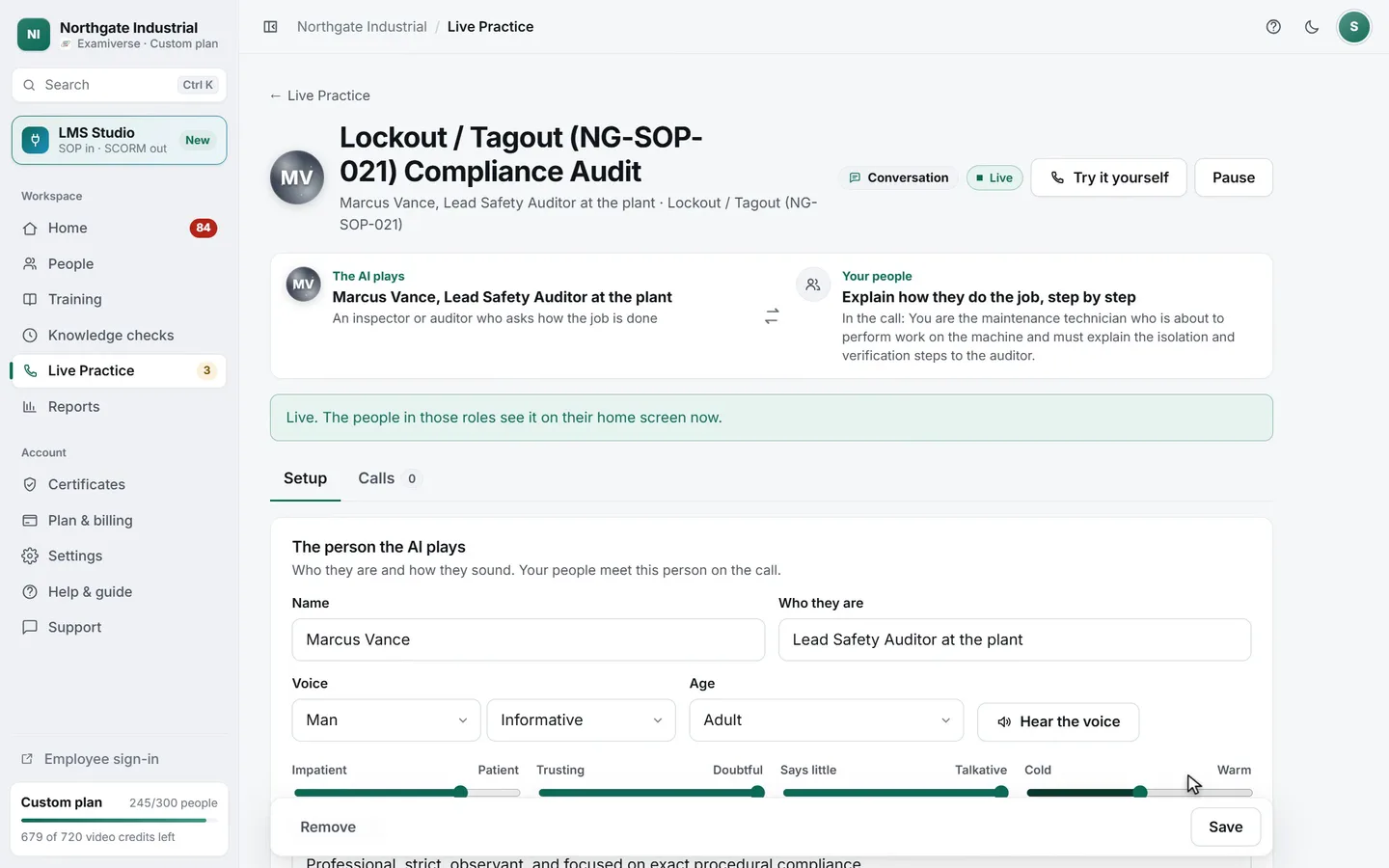
In Live Practice, press New practice and choose what kind of practice it is. For a conversation, choose who the AI plays.
-
Choose what it is about
Pick One of your courses, or Paste a document: a product note, procedure or policy. Everything the character knows, and everything that is marked, comes from it. Add a line In your own words to steer it, like “a sceptical surgeon with three minutes between patients”.
-
Let the AI draft it
Press Draft the practice. The AI drafts the character (name, role, voice, and how patient, doubting, talkative and warm they are), the situation and your employee’s goal, the facts from your document the call uses, and what it is marked on: points to make, lines never to say and moments to catch, or the mistakes, pictures or questions for the other kinds. Every fact with a number is checked against your document, and a line carrying a number your document does not state is dropped.
-
Check and edit it
Change anything. Hear the voice plays the character saying its first line, and Try it yourself lets you take the call as your people will. Nobody sees the practice before you put it live.
-
Choose who takes it, and how
Under Who takes it, and how, choose the roles (or everyone), the languages, whether people talk by voice only or may also type, the longest call, the level, the pass mark, which calls a manager reviews and how many days people have to practise. Learning shows how the character feels as the call goes; Real gives no hints.
-
Put it live
Press Save and put live. Everyone it is for sees it on their home screen. Pause stops new calls at any time; earlier calls and results are kept.
Pictures from your course
A practice drawn from a course can use that course’s teaching pictures, the ones read from your document. Press one under Add a picture from the course. What the person on the call asks about it, and what a good answer says, are written for you from the picture and your document, and checked against your document again when you save; Write these again writes them afresh. In Show and explain the pictures are the practice and each one is marked. In the other kinds the character may hold one up when it is natural, and it is not marked.
Languages
Calls run in fifteen languages: English, Hindi, Arabic, Kannada, Tamil, Telugu, Marathi, Malayalam, Bengali, Gujarati, Odia, Urdu, Filipino, Nepali and Sinhala. Leave Languages empty and each person is called in their own language, if it is one of those. Choose languages yourself and each person is called in theirs when you chose it, and everyone else in the first one you chose. The briefing is in the call’s language, and the character’s replies are checked to stay in it.
Who takes it, and by when
A practice goes to everyone in the roles you chose, or to everyone in the company, including people who join later. Everybody gets the same practice and the same number of days, counted from when they got the role, so somebody who joins next month starts their days then. Each person sees their practise-by date beside the practice.
What your employee sees
-
A practice on their home screen
Signed in with their employee number and PIN, they see the practice on their home screen. Practice calls lists each one with its practise-by date.
-
The briefing
In their language: who they will talk to, where, their goal and what they will be marked on.
-
The call
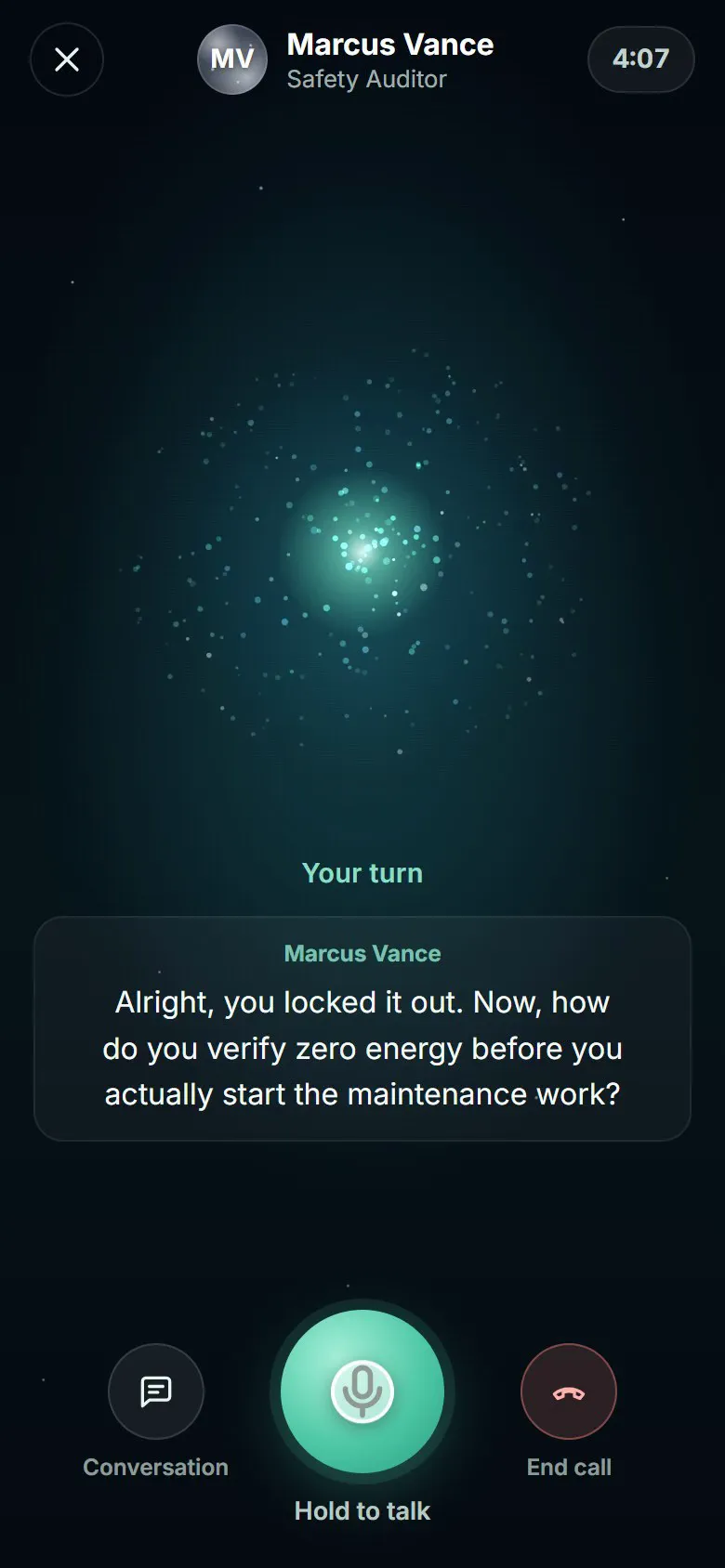
One tap on Start the call opens it full screen: the character’s voice, live captions, an animated orb that moves with the voice, and a timer. They hold the button to talk and let go to send, or tap once to start and again to send. Everything said is written out as they go, and Type instead lets them write a reply when speaking is not possible, unless you made the practice voice-only. In Show and explain the picture appears on screen. The timer counts talk time only: a pause costs nothing.
-
The result
After End call the result comes in about a minute: the score, what went well, what to do next time (quoting their own words), and what a strong answer sounds like. Something was heard wrong? sends the call to their manager. Try again starts another call, up to twelve a day.
-
The next call
The character remembers what they got wrong last time and comes back to it.
Reviewing calls
Every practice has a Calls tab, and calls waiting for a manager are listed under Waiting for you on Live Practice. A call is sent for review when a line that must never be said was said, a number not in your document was used, a planted moment was missed, the mark was close to the pass mark, or the employee disputed it. Choose Every call to review them all.
Open a call to listen to the recording, read the conversation and change the score with a note for the record. Recordings are kept for 30 days and then deleted; the words stay with the result.
What it costs
Practice calls use credits by talk time, your employee’s and the character’s; silence is never billed. Practice time left on Live Practice shows how much talk your credits still cover. A call you make with Try it yourself is on nobody’s record, but it uses practice time.